PDF Tools
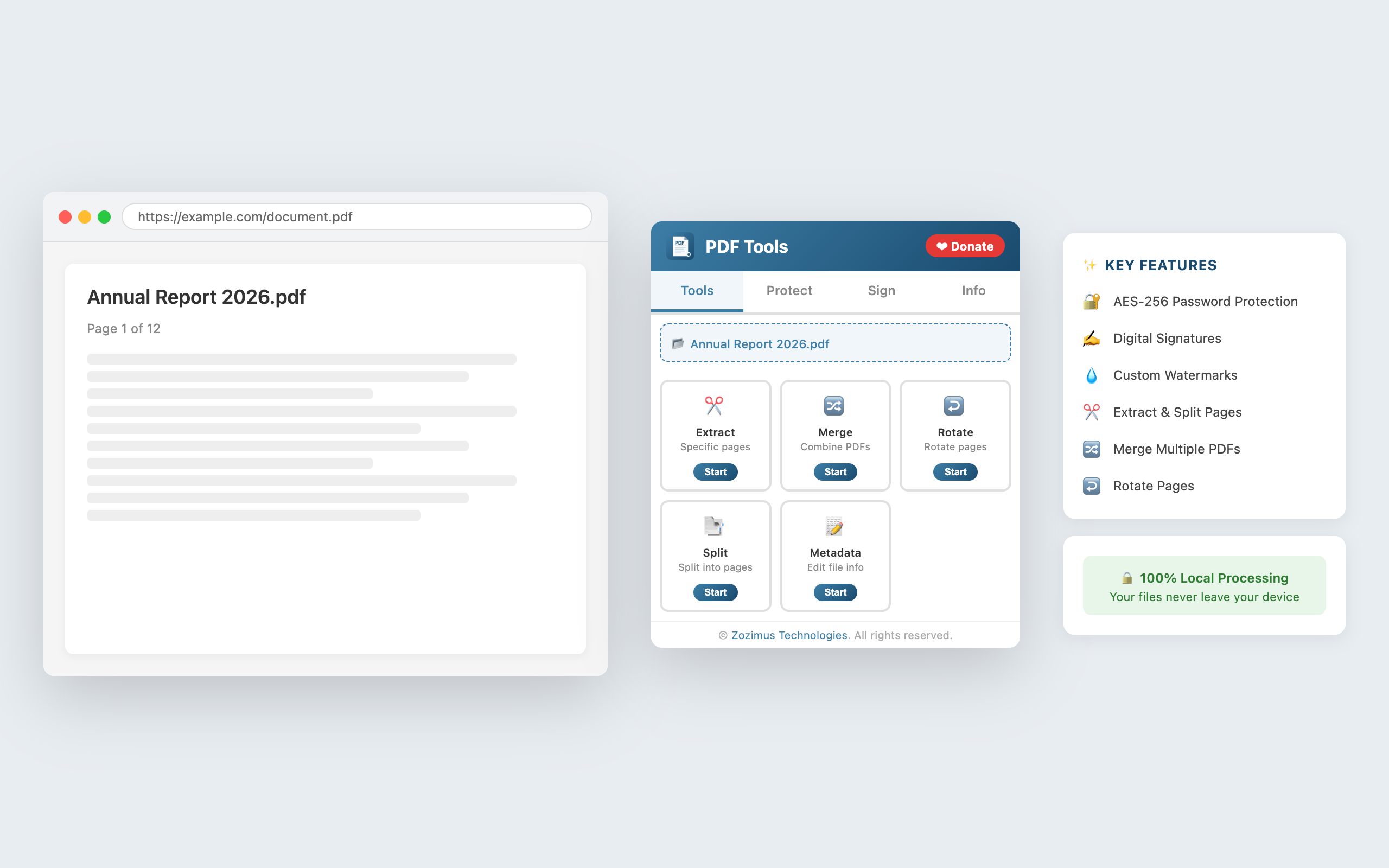
Password protect, sign, watermark, merge, split, rotate & extract PDF pages — 100% local, no uploads.
COMING SOON
Password protect, sign, watermark, merge, split, rotate & extract PDF pages — 100% local, no uploads.
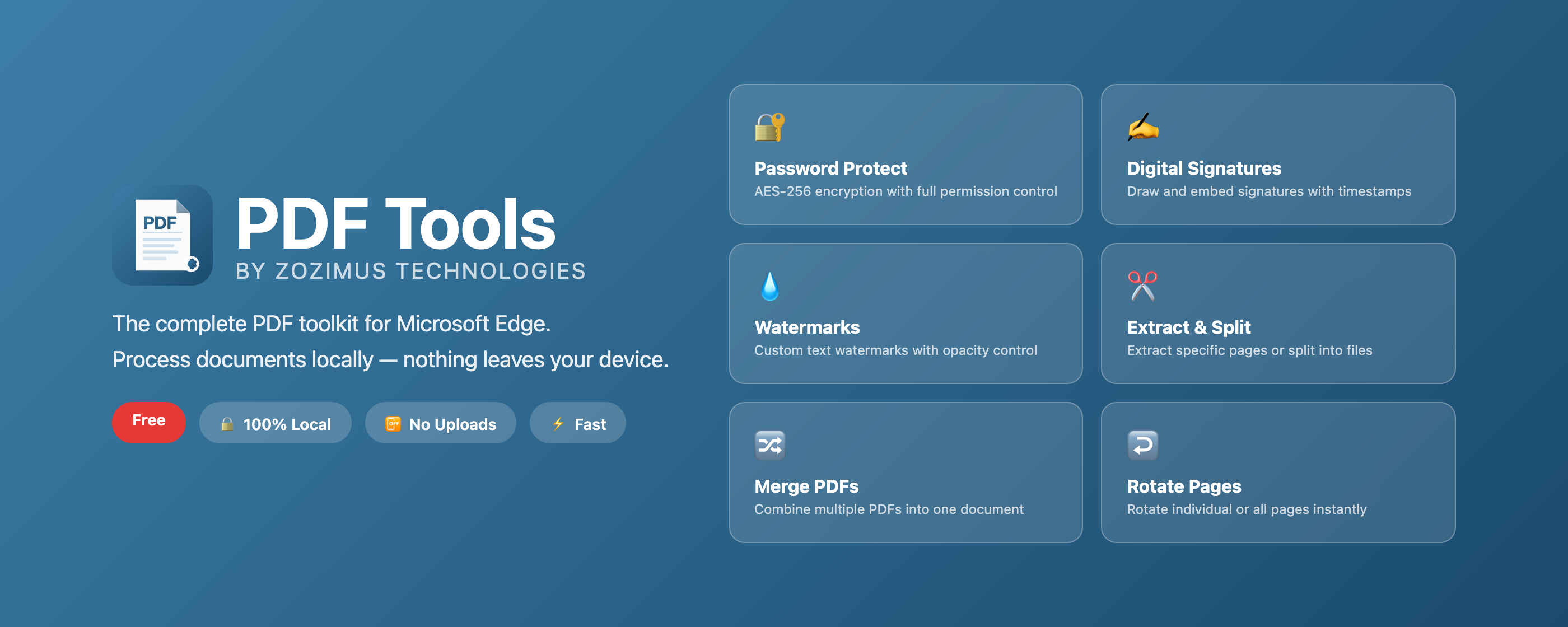
A complete PDF toolkit in a compact sidebar — zero uploads, zero accounts, zero complexity.
Encrypt PDFs with AES-256. Set separate user and owner passwords, and control printing, copying, editing, annotations, and form filling independently.
Decrypt any PDF you own. Enter the password once and download a clean, unencrypted copy instantly.
Draw your signature directly in the side panel using mouse or touch. Attach name, reason, page number, and an optional timestamp.
Add custom text watermarks with full control over placement, opacity, font size, and colour. Live preview updates as you type.
Pull out specific pages by number or range (e.g. 1–3, 5, 7) and download them as a new PDF in seconds.
Combine multiple PDF files into a single document. Load the first PDF, add more, and merge with one click.
Separate every page of a PDF into its own individual file. Download all pages in one go.
Rotate pages 90°, 180°, or 270° clockwise or counter-clockwise. Works on the entire document at once.
Update the document’s title, author, subject, keywords, creator, and producer fields without re-creating the file.
100% local processing. Nothing leaves your browser.
All PDF processing happens locally on your device using PDF-lib and PDF.js.
Zero analytics, zero cookies, zero data collection. We don’t know who you are.
Everything runs inside the extension. No CDNs, no remote code, no third-party dependencies.
Every line of code is on GitHub. Audit it yourself — we have nothing to hide.
Get it from the Edge Add-ons store.
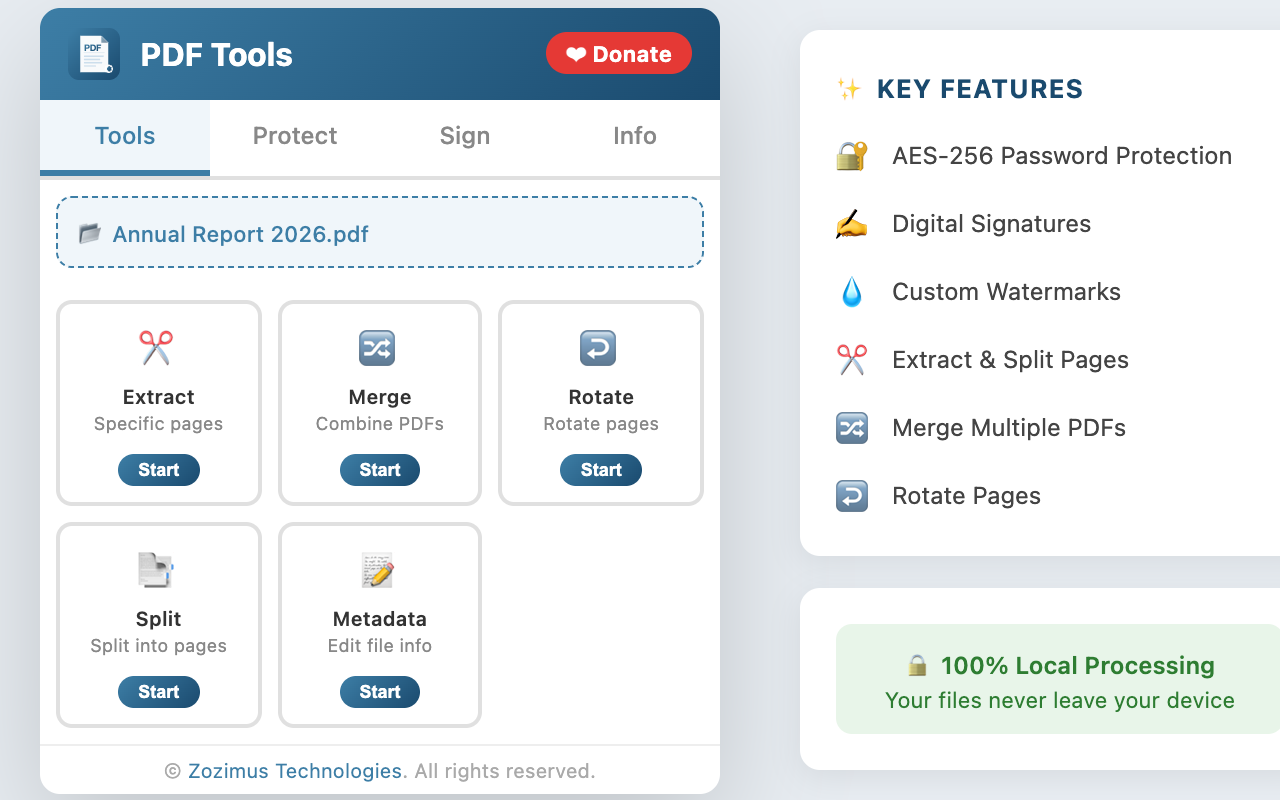
Click the PDF Tools icon in your Edge toolbar. The panel opens alongside any page.
Click the file picker to choose a PDF from your device, or use “Use Current Tab” if the tab has a PDF open.
Pick any tool, configure it, and click the action button. Your processed PDF downloads automatically.